
Introduction
Do you want to create a professional blog layout on your wordpress website? Blog template helps you display your posts with featured images, titles, short descriptions, and links to the full article. You don’t always need coding skills or a paid page builder to create one. In this guide, you will learn how to add a blog template using your wordpress site editor or wordpress theme’s built-in settings.
What Is a Blog Template in WordPress?
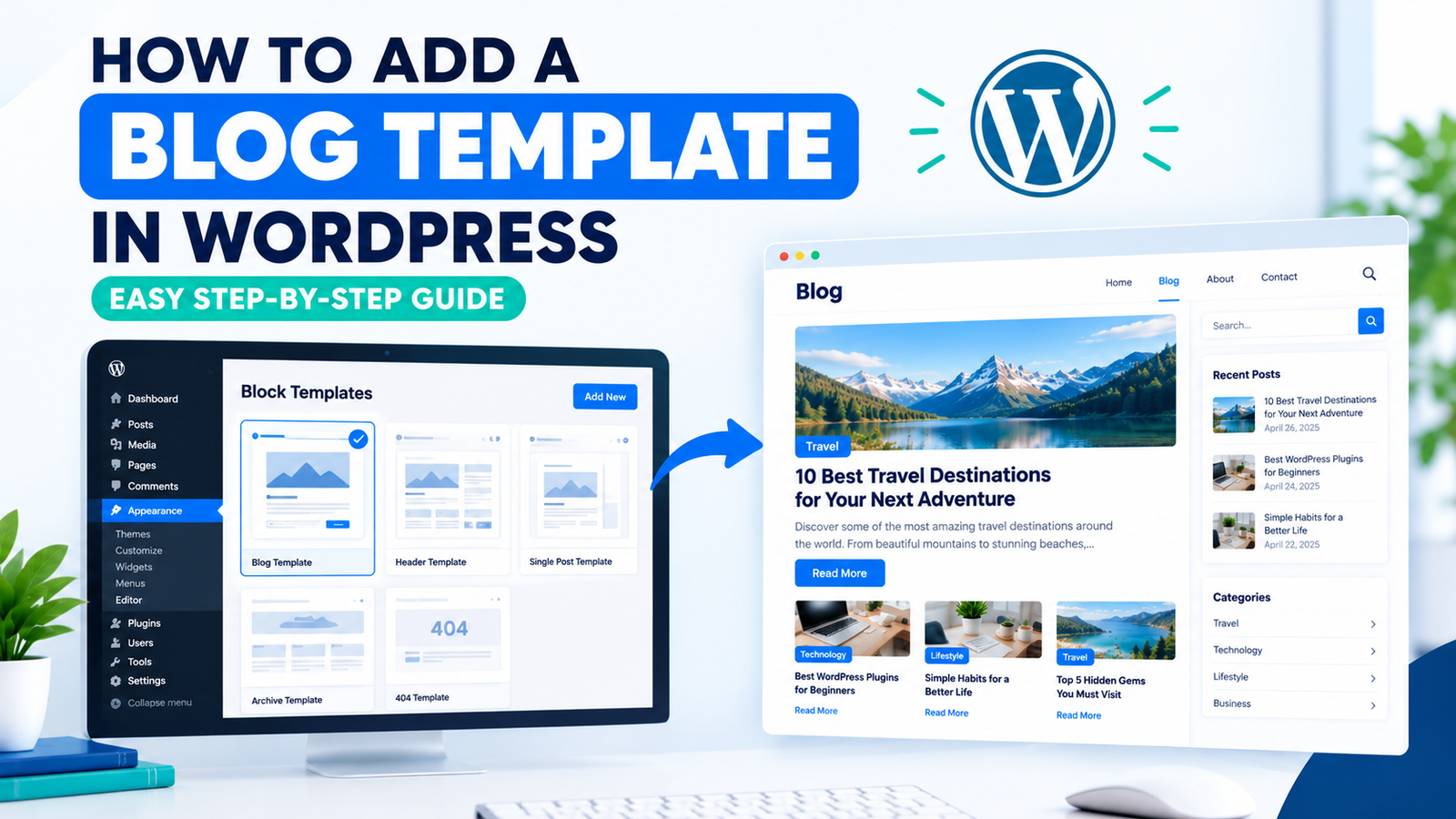
The blog template controls how your blog posts appear on the page. It lets you display your posts in a grid or list with featured images, titles, excerpts, and read more links. For example, instead of showing your articles in full, you can display them with a featured image, a title, and a short preview that visitors can click to read the full post.
Method 1: Add a Blog Template Using the WordPress Site Editor
This method works with compatible block themes.
Step 1: Open the Site Editor
Log in to your wordpress dashboard and go to Appearance → Editor.
Step 2: Open Templates
Click on Templates and select the template you want to display for your blog posts. Depending on your theme, it may be called Blog, Home, or Archive.
Step 3: Customize Your Blog Layout
You can edit and add to the template using customizable blocks, such as:
1. Post Featured Image – displays the article image.
2. Post Title – displays the article title.
3. Post Excerpt – shows a short description.
4. Read More – lets visitors open the full article.
You can also use the Query Loop block to display multiple posts.
Step 4: Save Your Changes
Click Save and visit your blog page to check the layout.
Note: If you don’t see Appearance → Editor, your theme may not support the Site Editor. Try the next method.
Method 2: Add a Blog Template Using Your Theme Settings
Many classic wordpress themes provide built-in blog layout options.
Step 1: Open the Customizer
Go to Appearance → Customize.
Step 2: Find the Blog Settings
Look for sections like Layout, Blog, or Archives. The exact settings depend on your theme.
Step 3: Customize the Layout
Choose a layout you like and set up options like featured images, post titles, sections, and the number of columns you want to display.
If you want your visitors to open each article separately, you can use excerpts instead of displaying your full post.
Step 4: Publish Your Changes
Click on Publish Options and check if your layout looks correct on your blog page.
Method 3: Add a Blog Template in GeneratePress
If you are using generatepress, you can start with its built-in blog settings.
Go to Appearance → Customize.
Open Layout → Blog, if available in your version.
Adjust the featured image, post title, metadata, and excerpt settings.
Choose the available layout options that suit your website.
Click Publish.
If you want a custom grid with image cards and Read More links, you’ll probably need a free post-grid plugin that works with your theme.
How to Set Your Blog Page in WordPress?
If you have created a separate page for your blog, you can assign it to the Posts page.
Go to Settings → Reading.
Select A static page under Your homepage displays.
Choose your homepage from the Homepage dropdown.
Choose your blog page from the Posts page dropdown.
Click Save Changes.
once you do that, your wordpress theme will automatically use its own blog or archive layout to show your posts on that page.
Frequently Asked Questions
Can I add a blog template in wordpress for free?
Yes. You can do this by setting up free themes or using the WordPress site editor, without purchasing a page builder.
Do I need Elementor Pro to create a blog template?
No. You can use the theme’s built-in settings to create a basic blog layout. If you’re looking for advanced template building features, you’ll need a paid plan.
Can I display only featured images and titles?
Yes. Depending on your theme or plugin, you can show featured images, titles, short excerpts, and Read More links instead of the full article.
Final Thoughts
Adding a wordpress blog template helps you display your posts in a clean, organized layout. Just head into your theme’s settings, customize your featured images and post previews, and make sure to check the final result on both desktop and mobile.
Get 20% Off Your Hosting

Ready to start your wordpress website? If you’re learning How to Add a Blog Template in WordPress (Step-by-Step Guide), you can also get your website online with reliable hosting. Get 20% off your hosting plan with this special offer and save money while setting up your WordPress website. If you have any question tell contact us.