
Introduction
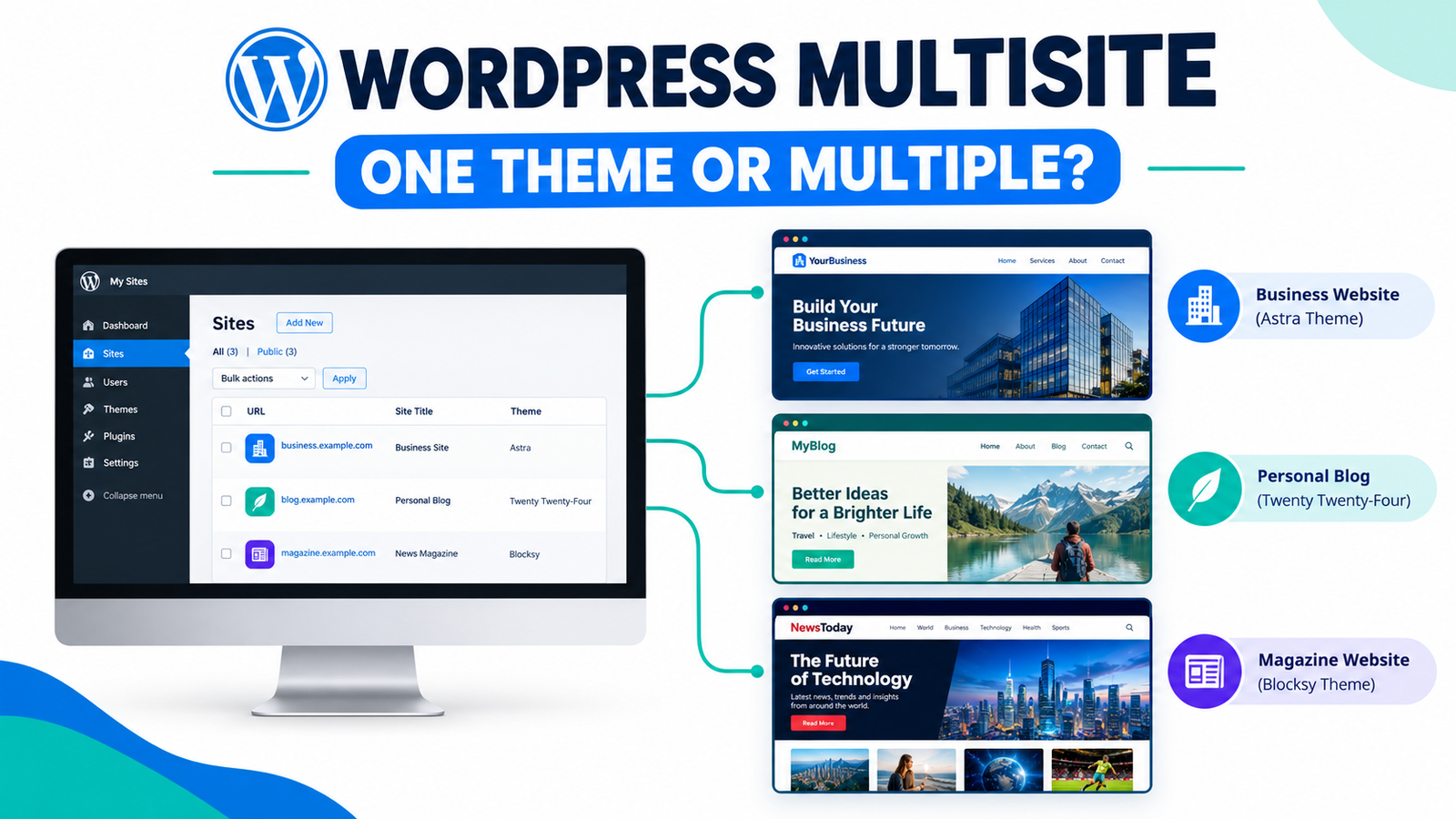
If you are planning to create multiple websites using wordpress, you have probably come across the term wordpress multisite. It is a very powerful feature that allows you to manage multiple websites from a single wordpress installation, One question that many beginners wonder about is: Does wordpress multisite use one theme or multiple themes? The short answer is both. WordPress multisite gives you the flexibility to use the same theme on every website or it allows each website to have a completely different theme. The options you choose depend on the type of website you are managing and how much customization you are looking for.
In this guide, I will explain everything you need to know about wordpress multisite themes, including how they work, when to use one theme, when to use multiple themes and which option is best for your situation.
What Is WordPress Multisite?
WordPress multisite is a built in feature that helps you create and manage multiple websites from a single wordpress installation. Instead of installing wordpress separately on every website, you can install it only once and create a network of websites in the same dashboard. For example, imagine that you own several websites:
1. companysite.com
2. blog.companysite.com
3. shop.companysite.com
4. support.companysite.com
without multisite, you have to log in to each website separately to update wordpress, install themes, manage plugins and create users. WordPress multisite, you can manage everything from one network admin dashboard. You can save time and make website management much easier. This feature is especially useful for:
1. Universities managing multiple department websites
2. Schools with websites for different classes
3. Businesses with several branch websites
4. Franchise companies
5. Digital agencies managing client websites
6. Bloggers running multiple blogs
If you regularly manage more than one website, wordpress multisite will help your workflow a lot.
Does WordPress Multisite Use One Theme or Multiple Themes?
Now let’s answer the question you came here for. WordPress multisite supports both one theme and multiple themes. There is no rule that says that every website on your network has to be designed the same way. Instead, WordPress allows network administrators to install multiple themes and decide which ones are available across the network. Each website can then activate one of the enabled themes. For example, imagine that you have three websites on your multisite network.
Website 1
A business website using the astra theme.
Website 2
An online magazine using the kadence theme.
Website 3
A photography portfolio using the generatepress theme.
Your three websites are all part of a WordPress multisite network, and each website has its own unique design. This flexibility is one of the biggest advantages of wordpress multisite. However, It is very important to remember one thing: Each individual website can only have one active theme at a time. You may have ten or twenty installed themes on your network, but a single website cannot display two active themes.
How Do Themes Work in WordPress Multisite?
Many beginners are confused about how to manage themes in a multisite network. The easiest way to understand it is with a simple example. Imagine a very large apartment building. The apartment building is your wordpress installation. Each apartment within the building represents a different website. Although all the apartments share the same building, each apartment has completely different furniture, decorations, wall colors, and layouts. WordPress multisite works in a similar way. All websites share the same wordpress core files, but each site has its own:
1. A different theme
2. Different pages
3. Different posts
4. Different menus
5. Different widgets
6. Different settings
This means that every website can have its own unique look and can be customized from the same dashboard.
One Theme vs Multiple Themes: What's the Difference?
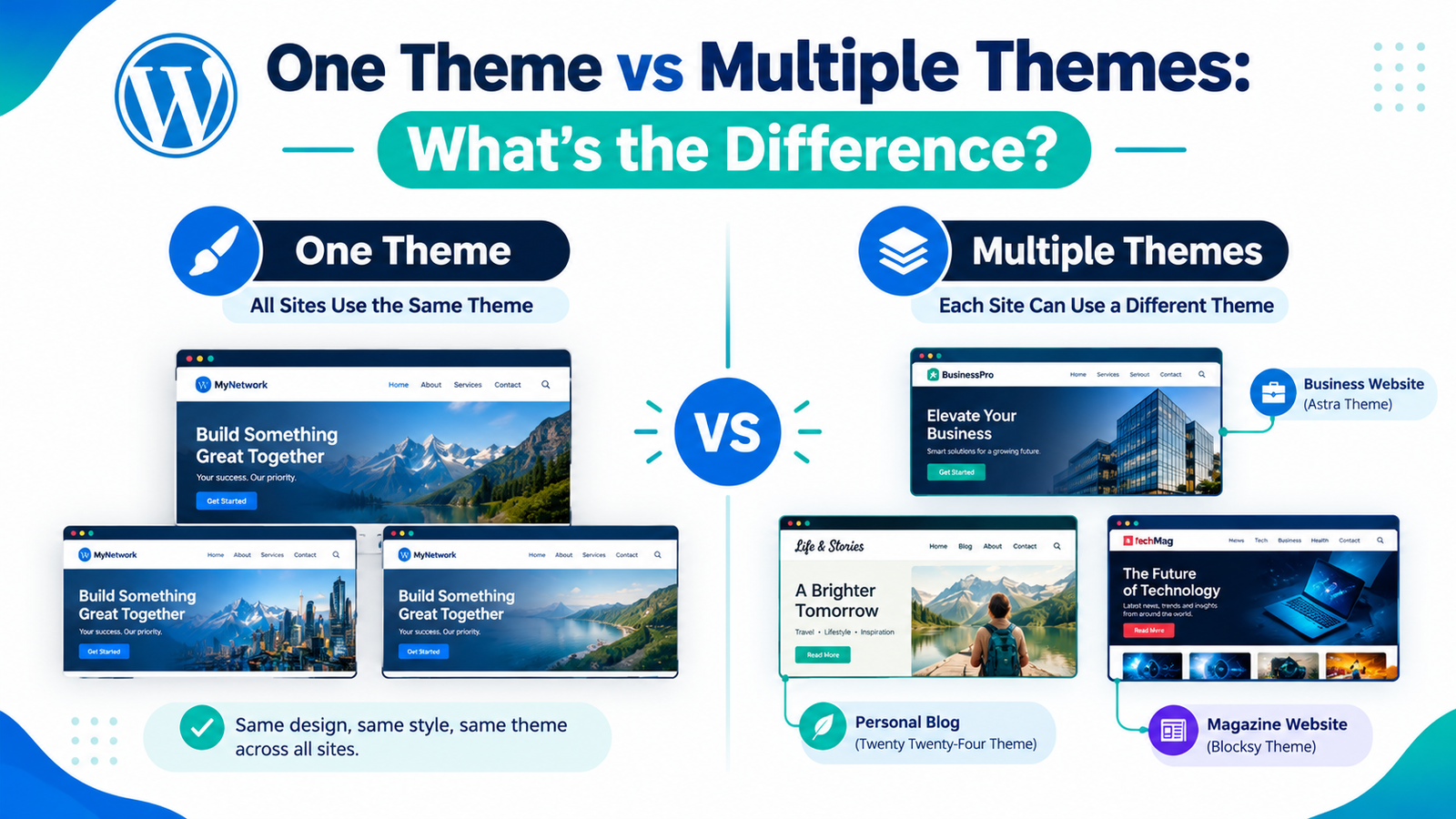
There are two common ways to use themes in a wordpress multisite network.
Option 1: Use One Theme for Every Website
In this setup, every website on your network uses the same wordpress theme. This is perfect if all your sites belong to the same company and need to look identical. For example, if a university has separate websites for different departments, using one theme can help a lot to maintain the same branding across every department.
Benefits include:
1. Consistent branding
2. Easier maintenance
3. Faster updates
4. Less design confusion
5. Simpler management
Frequently, this is the best choice for schools, franchises, government organizations, and businesses.
Option 2: Use Different Themes for Different Websites
The second option allows each website to choose its own theme. This gives every website complete freedom to have its own unique design and layout.
For example, a digital agency manages websites for different clients but may want each client’s website to reflect their own brand identity. This makes it possible to use different themes without having to create separate wordpress installations. This option provides a lot of flexibility but also requires a lot of maintenance because you have multiple themes to update and manage.
In some cases, agencies, freelancers, bloggers, and web developers prefer this approach because every project has different design requirements.
How to Install and Enable Themes in WordPress Multisite?
Now you know that wordpress multisite either uses one theme or multiple themes let’s see how to install and enable themes on your network unlike a standard wordpress site, individual site administrators on the network cannot install themes themselves. Only the Network Administrator has permission to install and manage themes across the network.
Once the theme is installed and enabled by the Network Administrator, it can be activated on individual websites if they have permission.
Follow these simple steps:
Step 1: Log in as the Network Administrator
First, log in to your wordpress multisite dashboard using the administrator account because this account has full access to manage every website in your network.
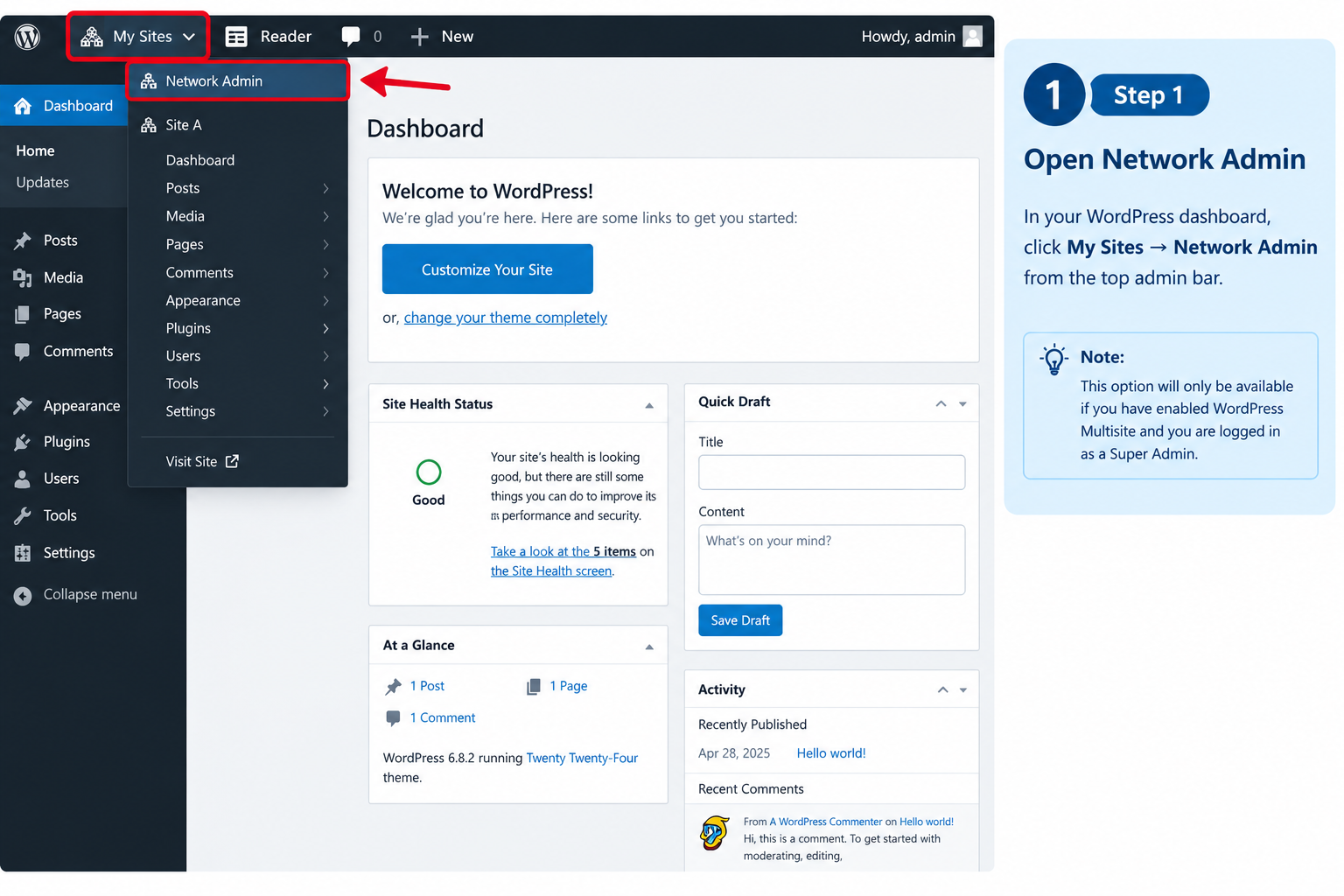
Step 2: Open Network Admin
From the top admin bar, hover over My Sites and click on Network Admin. The dashboard will allow you to manage all your websites from one place
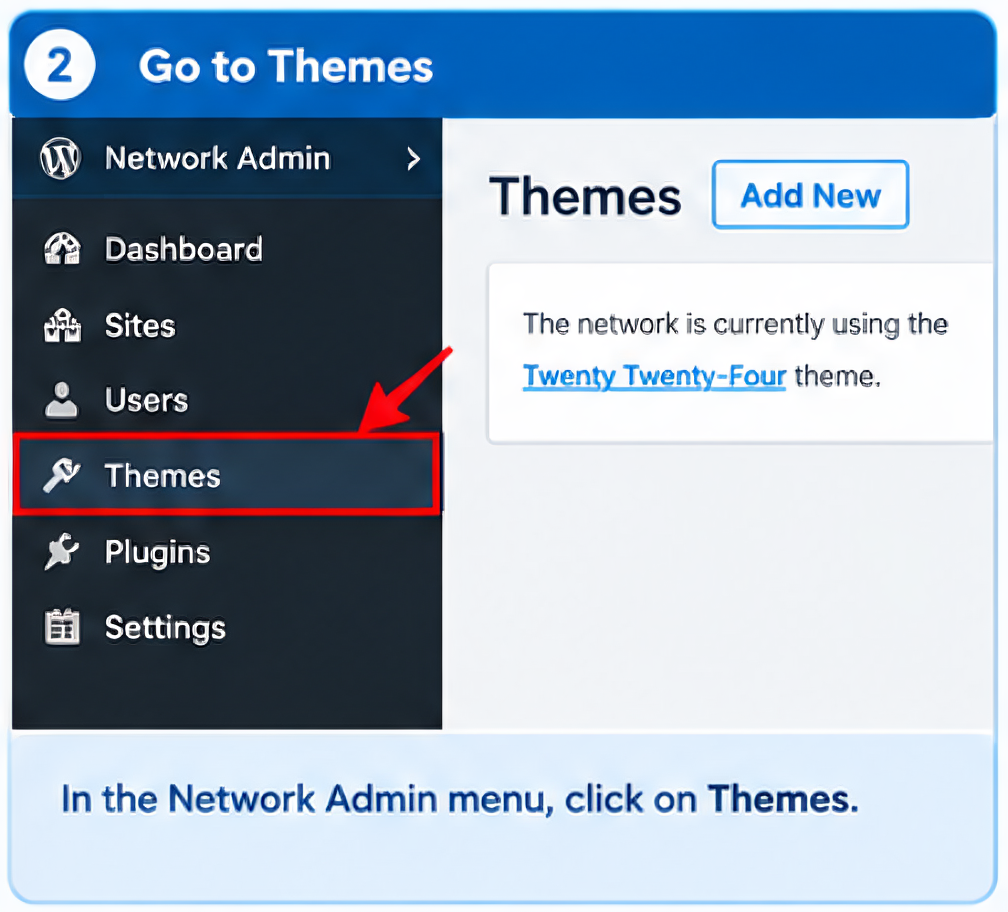
Step 3: Go to Themes
In the left sidebar, click:
Themes → Add New
Here you can browse free wordpress themes or upload a premium theme you have purchased.
Step 4: Install Your Theme
Choose the theme you want and click Install. Once the installation is complete, the theme will be available on your multisite network.
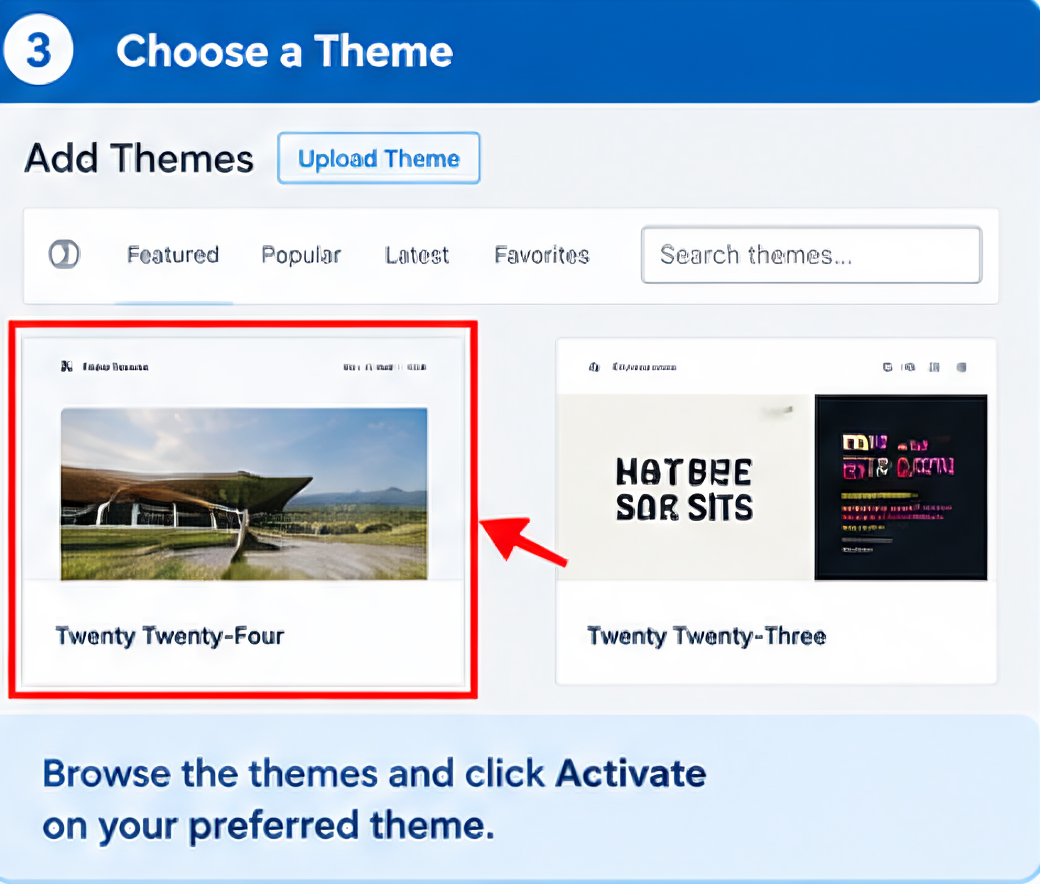
Step 5: Enable the Theme
After installing the theme, click on Network Enable. This will make the theme available for every website on your network.
Remember, enabling a theme does not automatically activate it on every website you have. It simply allows the website to use it.
Step 6: Activate the Theme
Now visit the dashboard of the individual website.
Go to:
Appearance → Themes
You will see all themes enabled by the Network Administrator. Once you choose the theme you want and click activate, your website will immediately start using the theme you selected.
Advantages of Using One Theme
Many organizations prefer to use one theme because it keeps everything simple and consistent. Here are some of the biggest benefits:
1. Consistent Branding
If every website is related to the same company, school, or organization, then using one theme will create a consistent look and feel with a good premium appearance. Visitors instantly recognize your brand no matter which website they visit.
2. Easier Maintenance
When you are using only one theme, it becomes easier to update it. You only need to maintain a single theme rather than managing several different themes.
3. Better Performance
Keeping the number of themes small means fewer compatibility issues and easier troubleshooting.
4. Less Time Managing Websites
Every website uses the same layout, so administrators spend less time customizing the design.
Advantages of Using Multiple Themes
Using different themes also has several benefits. Every Website Can Have Its Own Identity. If each website serves a different audience and has a unique design, it makes more sense.
For Example:
1. A restaurant website
2. A photography portfolio
3. A business website
All three have slightly different styles while remaining within the same multisite network.
1. More Design Flexibility
Different themes provide different layouts, features and customization options, allowing you to choose the best theme for your website.
2. Better User Experience
Every website can optimize its own visitors instead of forcing one design to fit every website.
Disadvantages of Using Multiple Themes
Although multiple themes provide flexibility, they also require additional management.
Some disadvantages include:
1. More updates to manage
2. Greater chance of compatibility issues
3. More testing after WordPress updates
4. Increased maintenance time
If you manage a lot of websites, it is recommended that you do not keep unused themes installed. Delete theme you do not need to improve security and organization.
Which Option Should You Choose?
The answer depends on your goals. Choose one theme if:
1. You want consistent branding.
2. You manage school or company websites.
3. You prefer simple maintenance.
4. Your websites have similar designs.
Choose multiple themes if:
1. Every website has a different purpose.
2. You build websites for clients.
3. You need different layouts.
4. Each brand requires its own identity
There is no right and wrong choice. The best option depends on how you manage your multisite network.
Best Practices for Managing Themes in WordPress Multisite
Follow these best practices to keep your network secure and organized:
1. Keep Themes Updated
Always install the latest updates to make your website more secure and compatible.
2. Remove Unused Themes
Unused themes are a security risk, so delete them if you don’t use them anymore.
3. Choose Lightweight Themes
Fast themes improve user experience and SEO. Try using popular, lightweight options like Astra, GeneratePress, and Kadence.
4. Test Before Updating
If your network has a lot of websites, test updates on a staging site first before applying them everywhere.
This helps prevent unexpected problems.
Get 20% Off Your Hosting

Ready to start your WordPress website? If you’re learning Does WordPress Multisite Use One Theme or Multiple Themes? (Beginner’s Guide) , you can also get your website online with reliable hosting. Get 20% off your hosting plan with this special offer and save money while setting up your wordpress website. If you have any question tell contact us.